Picture to Drawing: The Gap Between Instagram Filters and Actual Art
Most photo-to-sketch tools produce results that scream 'I used an app.' Picture to Drawing takes a different approach, and the difference is visible.
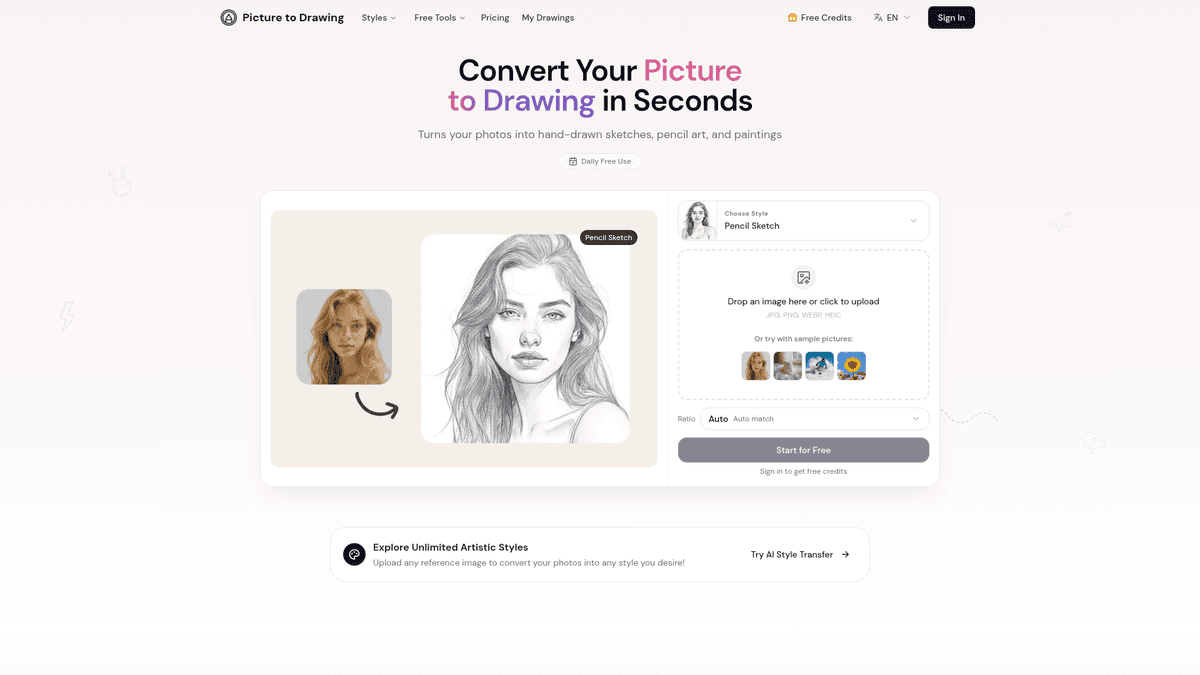
The Problem With Photo Filters Pretending to Be Art
We've all seen them. Instagram posts where someone ran their selfie through a "sketch filter" and the result looks like a bad photocopy with some edge detection thrown on top. The shadows are wrong, the lines are uniform, and somehow every photo ends up looking like it was drawn by the same robot having a bad day.
The gap between these filter effects and actual hand-drawn art has always been obvious. Real pencil sketches have weight variation in the strokes. Real charcoal drawings have texture that follows the form. Real watercolors bleed and blend in ways that feel organic.
Picture to Drawing claims to bridge that gap. After testing it, I think they're onto something.
What Makes It Different From Every Other Sketch App
The site shows a side-by-side comparison between traditional filters and their AI conversion. It's not subtle marketing—the difference is genuinely stark.
Traditional filters work by detecting edges and applying uniform effects. The AI approach here analyzes the actual content of the image: where the light falls, how textures behave, what parts of the image are focal points. Then it renders those elements the way an artist would approach them, not the way a Photoshop algorithm would process them.
The pencil sketch output actually looks like pencil on paper. You can see where the strokes would be heavier in shadows, lighter in highlights. The charcoal option has that soft, smudged quality that charcoal actually produces. The watercolor bleeds at edges the way real watercolor does.
It's still AI-generated—you're not going to fool an art collector—but it's the first time I've seen output from this category of tool that I'd actually consider printing and framing.
The Style Options That Actually Matter
The tool offers several conversion styles, and they're not just slight variations on the same effect.
Pencil Sketch works best for portraits and detailed subjects. The AI preserves fine details—individual hairs, fabric textures, subtle expressions—in a way that edge-detection filters destroy.
Line Drawing strips things down to clean contours. This one's useful for logos, technical illustrations, or when you need high contrast. The lines have weight variation that makes them feel hand-drawn rather than vector-traced.
Color Pencil keeps the warmth of the original colors while adding that textured, layered quality of actual colored pencil work. It's particularly good for pet portraits and family photos where you want emotional warmth, not just technical accuracy.
Watercolor is the most painterly option. Edges soften, colors blend into each other, and there's a looseness to the rendering that mimics how watercolor actually behaves on paper. Landscapes and nature shots work especially well here.
The Practical Details
The tool runs in-browser—no software to download. You can upload JPG, PNG, WEBP, or HEIC files, which covers pretty much every format your phone or camera produces. There's also a set of sample images if you want to test before committing your own photos.
Processing time runs about 50-60 seconds for free users, 20-30 seconds for paid accounts. That's slower than instant filter apps, but the quality difference justifies the wait.
Output resolution matches your input, which is significant. Most free tools compress your images down to unusable sizes. Here you can actually print the results at decent sizes.
One detail worth noting: they claim automatic deletion of uploaded images after processing, with no storage or sharing. Given the privacy concerns around AI image tools, this matters.
The Free Tier Actually Works
This part surprised me. There's a daily free use option that doesn't require payment info or a lengthy signup. You get actual conversions, not watermarked previews or tiny thumbnails.
The paid tiers add faster processing and more style options, but the free tier is genuinely functional for occasional use. If you just want to convert a handful of family photos into sketch-style prints for your wall, you can do that without spending anything.
Where It Falls Short
The tool is focused specifically on photo-to-drawing conversion. It doesn't offer the broader creative control you'd get from Midjourney or similar generative AI tools. You can't add elements, change compositions, or create from text prompts.
It also works best with clear, well-lit source photos. Dark or heavily processed images don't convert as cleanly—the AI needs visual information to work with.
And while the results are impressive for what they are, they're still recognizably AI output. The strokes are consistent in a way that human artists rarely are. For most uses this doesn't matter, but if you're trying to pass it off as hand-drawn original art, that's not quite what this delivers.
Who Should Use This
The sweet spot seems to be personal use and small-scale commercial projects. Family portraits converted to sketch-style prints. Social media content that needs to stand out from the sea of identical filtered photos. Small business marketing that wants an artistic touch without hiring an illustrator.
For professional illustrators or anyone needing highly customized output, this isn't a replacement for actual drawing skills or more powerful generative tools. But for everyone else who just wants their photos to look like art rather than filtered photos, it's surprisingly good.
February 2026